

- Updated on
Vibe Coding Starter Guide: from Design to Production Code with Agentic AI in Cursor
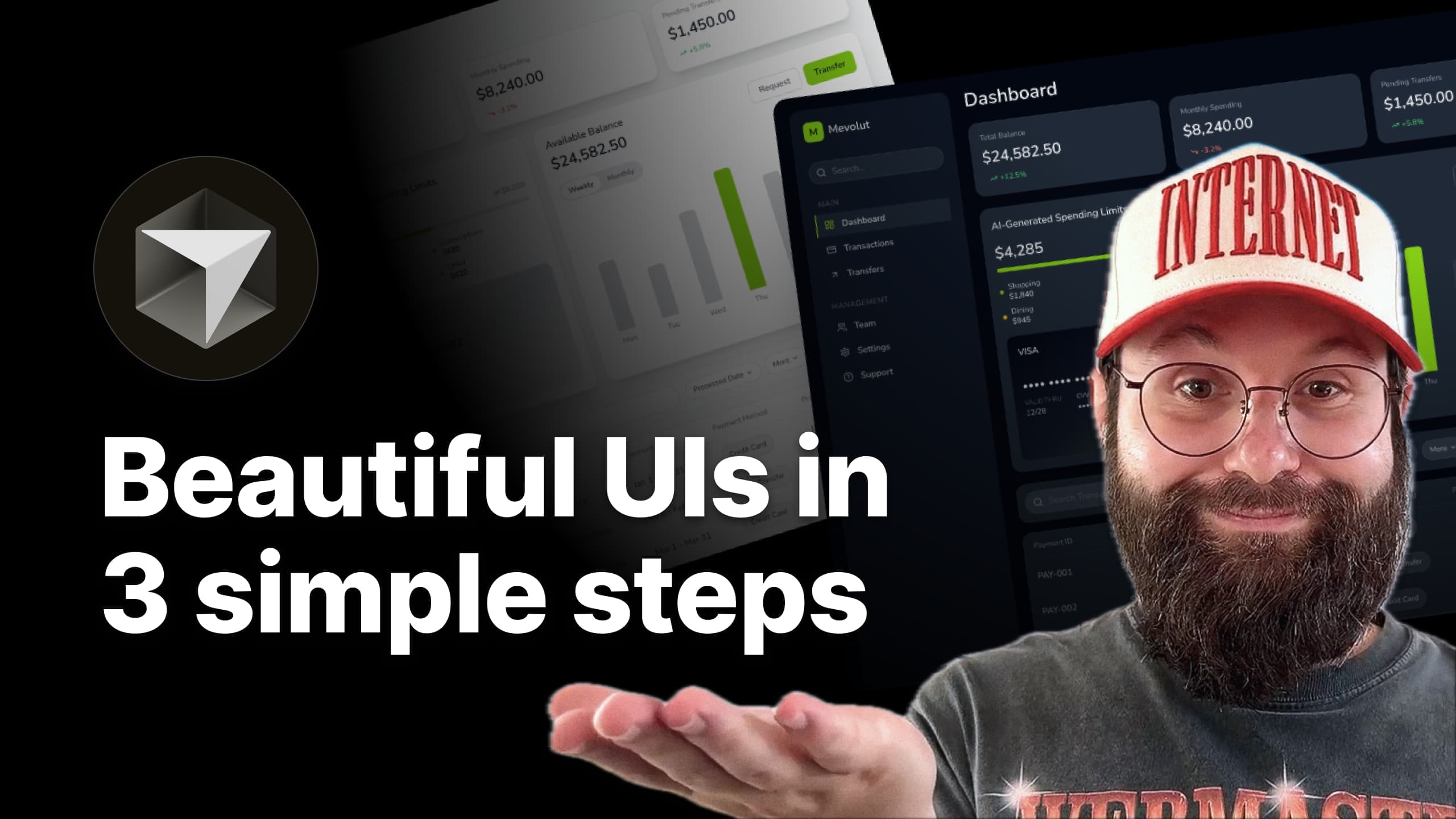
Every time you try to get AI to build a UI, it looks... let's say, less than ideal.
We've all been there: the purple design of doom, and slop code that looks like everybody else's AI-coded design.
Until now.
But by the end of this tutorial, you'll learn how to make a good-looking, responsive user interface for pretty much any design you throw at it.
Not only that, you'll have it powered by high-quality, maintainable code.
If video is your jam, here's the full tutorial on YouTube:
I'll share everything you need to reproduce this: the prompts, the workflow, the code.
Let's dive in! 🏊♂️
Looking for the code? 🧑💻
Download the free starter kit below.
Get code
What You'll Learn
This tutorial covers a 3-step workflow that transforms any design into production-ready code:
- Step 1: Generate a structured JSONC design brief
- Step 2: Bootstrap the codebase (the part nobody tells you)
- Step 3: Generate the code with a one-shot prompt in Cursor
Plus, you'll get a free starter kit with all the rules you need to skip the painful setup and start shipping in minutes.
The magic isn't in any single step. It's in the combination. Each step builds on the previous one to give AI the context it needs to produce genuinely good output.
Preparing the Design
Before we write any code, we need a design mockup to work from.
This workflow starts from one image of a design mockup. This means that it'll work with any design you throw at it.
Here are a few options to get you started with a design.
Option A: Generate with AI
You can use ChatGPT or Gemini's Nano Banana Pro to generate design concepts. Both OpenAI's and Google's image models are good enough to generate entire mockups these days. I've written design prompts in the past that work well for this—the key is being specific about the style, colors, and components you want.
Here's a template prompt you can use to generate UI mockups with AI:
You are an experienced UI designer embracing modern, minimalistic design, shadows, glass, and soft colors.

Your role is to create a professional, beautiful mockup that is ready for delivery based on these requirements:

{{requirements}}
## 1. Overall Style & Visual Language
This interface represents a premium, modern fintech / crypto trading dashboard using a dark theme.
The visual language combines **soft neumorphism**, and **luxury Web3 aesthetics**.

Core characteristics:
- Warm gold/orange accent highlights
- Monochromatic color palette with minimalistic effects and shadows
- Card-based layout with depth and subtle backgrounds
- Minimal borders, separation via shadows or light backgrounds

Target perception:
- Secure
- Professional
- High-end / institutional-grade
- Optimized for experienced traders

---

## 2. Layout Structure

### Global Layout
- Desktop-first dashboard
- Output proportions: 3:2
- Three main regions:
  1. Top navigation bar (horizontal)
  2. Left sidebar navigation (vertical)
  3. Main content area (multi-column grid of cards)

Spacing is generous, prioritizing clarity and visual breathing room.

---

## 3. Top Navigation Bar
- Height: 72px
- Left:
  - Brand logo text "Mevolut"
  - Stylized "M"
  - Gold/orange accent
- Center:
  - Navigation links: Dashboard, Security, Referral, Trading Fees, API management
- Right:
  - Order link
  - Primary CTA: “Deposit” (gold pill button)
  - User avatar (circular)
  - Theme toggle (moon icon)

Typography:
- Clean sans-serif
- Medium weight
- White primary text, muted gray inactive states

---

## 4. Left Sidebar Navigation
- Width: 240px
- Background: near-black
- Vertical navigation items with icons:
  - Dashboard (active)
  - Security
  - Referral
  - Trading Fees
  - API management
- Bottom-aligned:
  - Settings

Active item:
- Subtle background highlight
- Slight background tint
- Rounded container

Icons:
- Outline style
- Gold accent on active state

---

## 5. Main Content Area

### 5.1 User Overview Card
- Large rounded card at top
- Left:
  - Circular avatar
  - Greeting text (“Hello…”)
  - User name
- Inline info blocks:
  - UID (copy icon)
  - Identity verification status
  - Security level
  - Time zone
  - Last login timestamp
- Right:
  - “Hide info” toggle

Style:
- Subtle inner shadows

---

### 5.2 Deposit / Buy Card
- Medium-sized card
- Title text explaining deposit options
- Two action rows:
  - Deposit (dollars or crypto)
  - Buy stocks (local currency)
- Each row:
  - Icon
  - Label
  - Arrow action button (gold accent)

---

### 5.3 Total Asset Card
- Displays USD balance and USD equivalent
- Large, faded Dollar symbol watermark in background
- Action tabs:
  - Buy stocks
  - Deposit
  - Withdraw
- Numeric values are large

---

### 5.4 VIP Level Card
- Shows current VIP level
- Spot and futures fee rates
- Progress bar for token holdings
- “View more” link

Progress bar:
- Rounded
- Dark background track

---

### 5.5 Current Holdings Table
- Card containing a table layout
- Columns:
  - Coin (icon + name)
  - Price
  - 24h Change
  - 4h Trend (sparkline)
  - Actions (Deposit, Withdraw, Trade)

Sparklines:
- Green for positive trend
- Red for negative trend

Hover:
- Subtle background highlight per row

---

### 5.6 Affiliate Program Card
- Promotional card
- Gold coin illustration
- Short description and CTA button (“Apply now”)

---

### 5.7 Information / News Card
- Vertical list of announcements
- Headline + timestamp
- “View more” link at top

---

## 6. Color Palette
- Primary background: deep charcoal / black
- Card surfaces: slightly lighter
- Accent color: warm gold
- Text hierarchy:
  - White (primary)
  - Muted gray (secondary)
  - Dark gray (disabled)
- Status colors:
  - Green for positive
  - Red for negative

---

## 7. Effects & Interaction
- Rounded corners throughout (sm)

# Design tokens:
{
  // Global theme definition
  "theme": {
    "mode": "dark",
    "style": [
      "soft-neumorphism",
      "premium-fintech"
    ]
  },

  // Layout measurements and structure
  "layout": {
    "type": "desktop-dashboard",
    "grid": "three-column",
    "sidebarWidth": 240,
    "topbarHeight": 68,
    "contentPadding": 24
  },

  // Color system
  "colors": {
    "background": "#0B0D10",        // Main app background
    "primaryAccent": "#F5A623",     // Gold/orange highlight
    "secondaryAccent": "#FFB547",
    "textPrimary": "#FFFFFF",
    "textSecondary": "#B0B3B8",
    "textMuted": "#6B6F76",
    "success": "#22C55E",
    "danger": "#EF4444"
  },

  // Typography scale
  "typography": {
    "fontFamily": "SF Pro, system-ui, sans-serif",
    "weights": {
      "heading": 600,
      "body": 400,
      "numeric": 500
    },
    "sizes": {
      "h1": 24,
      "h2": 20,
      "h3": 16,
      "body": 14,
      "caption": 12
    }
  },

  // Core UI components
  "components": {
    "card": {
      "borderRadius": 16,
      "shadow": "0 20px 40px rgba(0,0,0,0.4)",
      "border": "none",
      "background": "#14171C",
    },

    "button": {
      "primary": {
        "textColor": "#0B0D10",
        "borderRadius": 999,
      },
      "secondary": {
        "background": "transparent",
        "textColor": "#F5A623"
      }
    },

    "sidebar": {
      "background": "#0E1014",
      "itemRadius": 12,
      "iconStyle": "outline"
    },

    "table": {
      "rowHeight": 56,
      "divider": "subtle",
      "hoverHighlight": true,
      "sparkline": {
        "positiveColor": "#22C55E",
        "negativeColor": "#EF4444"
      }
    },

    "progressBar": {
      "height": 6,
      "radius": 999,
      "fillColor": "#22C55E",
      "backgroundColor": "#2A2E35"
    }
  },

  // Icon system
  "icons": {
    "style": "outline",
    "size": 18,
    "colorInactive": "#6B6F76",
    "colorActive": "#F5A623"
  }
}
{{/requirements}}
You can add custom instructions on style, colors, layout and content and attach the prompt as context.
For example:
Use the attached specification as a template to generate a design brief.

Your task is to write a new specification for a fintech app called "Roobin Mood".
Rewrite it based on the following requirements:
- Style: Skeuomorphic, modern, deep shadows, glass, soft colors.
- Colors: Green accents, black background, white text.
- Layout: 3-column layout, with a sidebar on the left and a main content area on the right.
- Content: A dashboard with a sidebar navigation and a main content area.
- Components
  - A line chart showing account balances
  - A table showing past transactions
  - A card showing the latest news
  - A card showing total gains/losses

<paste design brief from above here>
To check if this looks right, you can prompt AI to generate images based on the new specification before you jump into coding.
Check the AI design style reference for more ideas on how to write this prompt.
Option B: Use an image as input
Most commonly, you'll have a mockup that you would like to code up.
If you don't have a design and just want to make a prototype real quick, you have a few lazy options:
Attach it as the context for the prompt, and then make sure to specify the style, colors, layout and content in the prompt as shown above. Attach it as the context for the prompt, and then make sure to specify the style, colors, layout, and content in the prompt as shown above.
Let's just go to Dribbble for this tutorial to keep it short.
- Go to dribbble.com
- Search for something like "Fintech dashboard" or whatever you're building
- Pick a design you like
I'll go with this one:

What Makes a Good Reference Design?
Look for designs that have:
- Clear visual hierarchy: Headers, cards, sections are obvious
- Consistent spacing: Not chaotic or random
- A defined color palette: Usually 2-3 main colors
- Real UI elements: Charts, tables, cards, navigation
The better the reference, the better the output.
Want a website that is already optimized for AI coding?
PageAI includes 100s of production-ready components and can 1-shot entire landing pages.
We'll now take the design mockup and convert it into a structured JSONC design brief.
Step 1: Generate the Design Brief
This is where the first key part comes in.
The design needs to be converted into something the AI coding agent can use. AI coding has come a long way, so it will generate something even from a bad prompt. However, generating a good design that matches our intent requires a lot more detail and specificity. Otherwise, AI will just do guesswork and you'll end up with the classic purple design.
Through much experimentation, I've found that converting the design to a JSONC format (JSON with Comments) gives the most accurate results. This structured format helps AI understand exactly what to build.
Here's a template prompt you can use to generate a design brief from a mockup:
This is a dashboard of a modern fintech app called Mevolut.

Thoroughly analyze the UI in this screenshot and describe it in as much detail as you can to hand over from a UI designer to a developer. The brief should cover both light and dark mode and contain responsive breakpoints matching Tailwind CSS defaults.
Output characteristics as structured JSONC.

For colors, extract a rough palette and only detail accents and complex media. The goal is to use only 2 palettes: primary and secondary similar to Tailwind colors. Alongside these 2, you can define any number of grays and accent colors for more complex UI (gradients, shadows, SVGs, etc.).

End with a prompt explaining how to implement the UI for a developer, but don't mention any tech specs; only a brief of the UI to be implemented and the token rules + usage. Output the prompt as a Markdown code block.
The only part you need to change is the first line: This is a dashboard of a modern fintech app called Mevolut. Write a concise description of the app and the dashboard you're building and then fire off the prompt.
Note: ChatGPT is great at this, but you can also use Gemini to generate the brief.
The output should be two code blocks: one for the design brief and one for the JSONC design specification.
Make note of both as you'll need them in Step 3.
Step 2: Bootstrap the codebase
This is the part that nobody tells you. Your success depends on how good the starting codebase is.
AI is slow, expensive, and unreliable when it comes to generating a fresh codebase. It doesn't have any incentive to go the extra mile and produce a good setup. By design, it'll find the path of least resistance and produce a codebase that is good enough for the task at hand. That won't set you up for success and frankly, it's a waste of time and money. Obviously, big AI companies would like you to believe that it can do that too because they can sell you more tokens.
Here's the thing: we've been building codebases with CLIs for decades. They are essentially free, fast, reproducible, and extremely reliable.
I'll share the starter kit that I used for this tutorial below.
Skip the setup entirely.
PageAI can generate a complete, production-ready website in minutes.
Starter kit requirements
A good starter kit should include:
- Design system: UI library with configurable tokens (colors, fonts, spacing)
- SEO essentials: meta tags, titles, JSON-LD, sitemap, etc.
- Branding basics: favicon, logo, open graph images
- AI rules: rules explaining tech, components, dir structure etc. so AI can better use it
Setting all this up manually takes time, with or without AI.
So feel free to use the starter kit and tweak things afterwards to save time on the setup.
Download the free starter kit 🧑💻
Everything you need to reproduce the results from this tutorial:
- ✅ 40+ AI rules and commands to improve AI output
- ✅ Pre-configured Next.js + Tailwind CSS setup
- ✅ Component structure ready for AI generation
- ✅ Design system with easy color/font customization
- ✅ All the boring config already done and hackable in a single file
Regardless of whether you use the starter kit or set up your own, make sure to install the dependencies and run the development server before you proceed to the next step.
How to Use the Starter Kit
- Clone / Download the repo
- Install dependencies (
npm installorpnpm install) - Run the development server (
npm run devorpnpm run dev)
Step 3: Generate the Code
With the design brief and the starter kit in hand, it's now time to generate the code.
Let's head over to Cursor and implement the design.
Note: you can also use Claude Code or Windsurf to generate the code. The starter kit + prompt below should work fine with other AI coding tools, too.
The Implementation Prompt
Even though the specification generated in Step 1 is quite detailed, we need to prompt the AI coding agent with a few more important requirements, such as:
- responsive design
- dark mode support
- no magic strings
- design system usage
Without this, you'll likely get a lot of hardcoded values that are hard to change or maintain.
Here's the prompt template you can use to generate the code:
Your task is to implement a new route on /dashboard, following the design + development brief below. Implement thoroughly, in a step-by-step manner, and use built-in, standard Tailwind CSS design tokens instead of hardcoding values.

For colors and font families, use the defined values present in
@tailwind.config.js, e.g. 'bg-primary-500' etc. instead of the hardcoded primary/secondary values in the JSON brief. For one-off colors/grays etc. the JSON values are acceptable.

**Requirements**

- responsive (full width bg with centered content on larger screens)
- theme aware components with light and dark mode support (you can toggle with @ThemeSwitch.tsx; make sure to include that in the menu bar)
  - update @data/config/colors.js to match the colors in the design brief
  - *important* make sure to include light and dark mode colors by using Tailwind's dark mode classes (dark:)
  - all components must adapt to theme changes
- *do not use* magic strings, hex values, or px values. Replace all with Tailwind classes if possible.
- split reusable or complex parts of the UI into components so the code is maintainable and easy to understand.
- if any sample data is generated, place it in a separate file to keep the code clean.

**Note**

- the app is already running a dev server at port 6006

**Assignment brief**

<paste design brief from Step 1 here>

**Design specification**

<paste JSONC design specification from Step 1 here>
⚠️ Remember to replace the design brief and JSONC design specification with the actual content from Step 1.
A few details to note here.
The prompt specifies that the app is running locally at port 6006. This is because, among other things, the starter kit includes a Playwright MCP as well as a rule to verify the resulting UI and fix any issues it might have.
Cursor will automatically open a browser window via the Playwright MCP, take screenshots, and verify mobile views, dark mode, and so on. It will then iterate until the UI matches the design brief as best as possible.
Another detail is to prompt the AI to split components and sample data into separate files. This will make it easier to work on this file with AI later on, and also help keep the code clean and maintainable.
The Result: Why This Actually Works
AI is capable of doing incredible things, even with current-generation models. However, as we found out from day one, the better the context, the better the output.
This workflow works because we provide the AI with good, structured context and a starting codebase that prevents it from going off the rails.
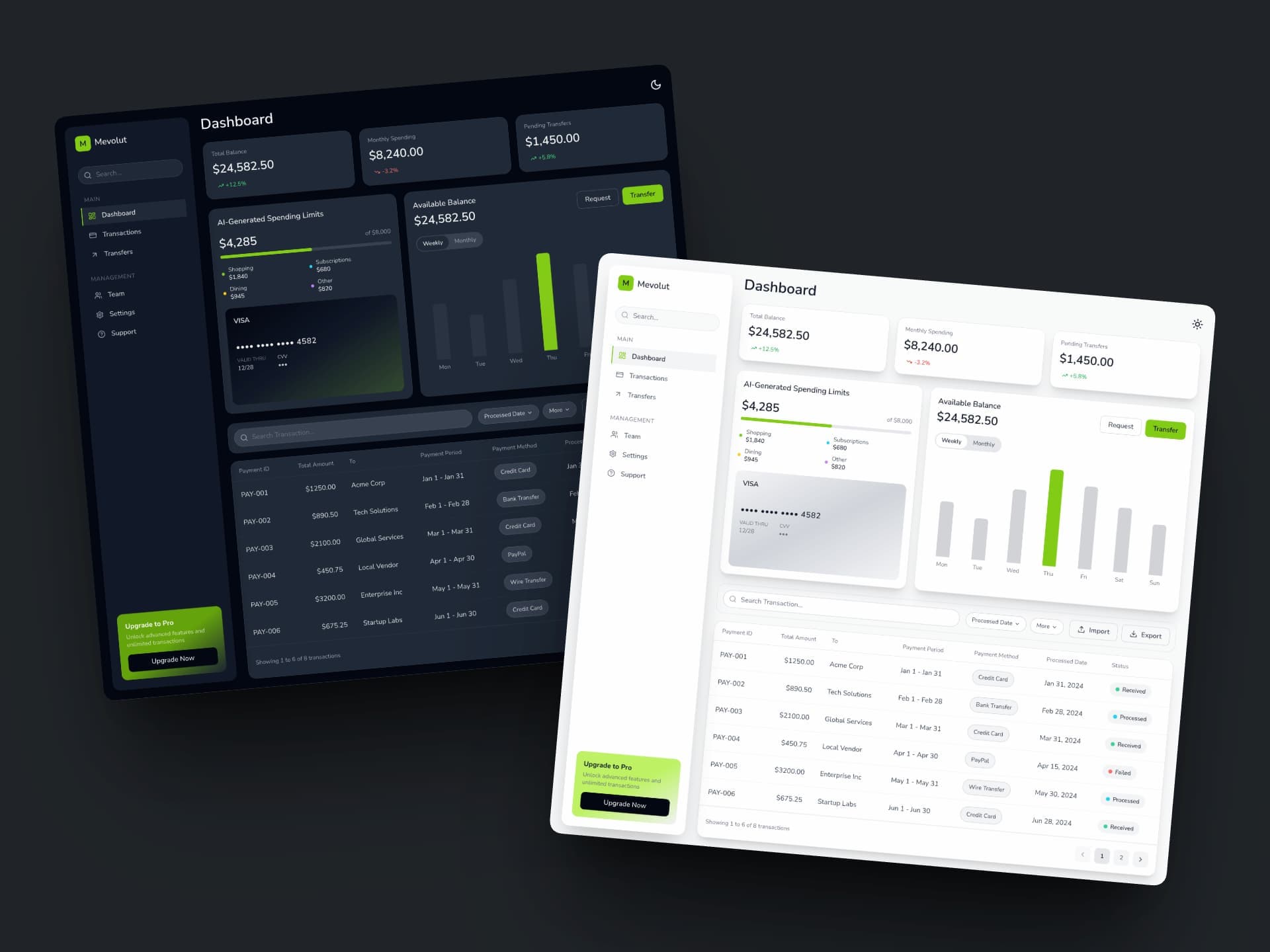
Here is the result that I got from a single prompt in Cursor:
Why This Code Is Production-Ready
This isn't demo code you'll rewrite later. It's code you can actually ship.
- The dashboard is fully responsive out of the box. It adapts smoothly with proper layout shifts and animations.
- It's themeable, flexible, and supports both light and dark mode. Change the primary color in one config file and the entire UI updates.
- It contains SEO essentials, good defaults and branding basics.
That's because the generated code uses proper design tokens, well-structured components, and logical file organization.
This is what AI code looks like when you give it the right context.
Wrapping Up and Next Steps
This workflow is a great way to get started with AI coding. It's a simple, repeatable process that you can use to generate production-ready code.
When done, you can deploy the codebase to any provider. An easy way to deploy is on Vercel.
Here are the steps to get this deployed:
- Push the entire codebase to a new GitHub repository
- Sign up for an account using "Log in with GitHub"
- Select the repository you pushed and click "Deploy"
That's it! You've just deployed a well-designed UI that is ready for more iterations.
As mentioned before, the secret isn't any one tool or prompt. It's the combination of good inputs (design + brief) with a solid foundation (starter kit), as well as the rules and setup that come with the starter kit.
Thanks for reading!
Common Mistakes to Avoid
AI is good, but it's not magic. You might need to iterate. The good news is that with a proper starter and design brief, iterations are minor tweaks—not complete rewrites.
❌ Skipping (or weakening) Step 1's JSONC design brief
If you feed the agent a screenshot + vague instructions, it will guess (classic purple UI, wrong spacing/hierarchy). Make sure the brief includes light + dark mode and responsive breakpoints.
❌ Letting AI generate the entire codebase instead of bootstrapping a solid starter
A fresh AI-generated setup often optimizes for "works once," not maintainability. Use a starter kit with a design system, SEO essentials, and AI rules.
❌ Allowing "magic strings" to creep in (hex, px, one-off styles everywhere)
This kills iteration speed. Prefer Tailwind tokens and design-system primitives; only use raw values for truly one-off cases.
❌ Treating responsive + dark mode as optional polish
If you don't explicitly require and verify them, they'll be inconsistent. Keep theme awareness and mobile layouts as first-class requirements. These are hard to add later.
❌ Not modularizing early (one giant file, mixed sample data, no components)
It might look OK, but it becomes painful to iterate. Split reusable UI into components and keep sample data in separate files. You'll also end up using more tokens whenever you make a change, especially when the entire file will be used as context.
Resources
- Starter Kit on GitHub: Free, ready to clone
- PageAI: Complete production-ready codebase
- Dribbble: Design inspiration
- Cursor: the IDE used for agentic AI coding
- Claude Code: the CLI used for agentic AI coding
Going Further: When You're Ready to Ship
The starter kit is great for learning and prototyping. But when you're ready to ship something real, you'll want more:
- SEO-ready by default: meta tags, JSON-LD, canonical URLs, and performance so you can rank from day 1.
- Built-in MDX blog (no database): write posts by adding
.mdxfiles—fast and cheap to run. - Search, tags, RSS, sitemap: works out of the box and auto-updates as you publish.
- Dynamic social images + automatic favicon generation: share-ready branding without design busywork.
- Component library + documentation: reusable building blocks so you can keep iterating cleanly.
- Dark mode + theming: change theme & fonts easily (1000+ theme + font combinations).
- Copywriting included: launch with real content, not lorem ipsum.
- Own the code: download the full codebase and deploy in 1 click.
- Unlimited edits: iterate without rebuilding from scratch (or burning tokens redoing the foundation).
That's what PageAI is built for.
The AI website builder that's better than Lovable, v0 and the rest.
AI Design Style Reference
Use this reference to mix and match options when writing your design brief. Copy the terms that match your vision.
Visual Style
| Category | Options |
|---|---|
| Modern/Clean | Minimalist, Flat design, Material Design, Swiss/International style, Scandinavian |
| Depth & Texture | Glassmorphism, Neumorphism (soft UI), Skeuomorphic, Claymorphism, Frosted glass |
| Bold & Experimental | Neobrutalism, Brutalist, Cyberpunk, Vaporwave, Retro/Y2K, Memphis design |
| Elegant | Editorial, Magazine-style, Luxury, Art deco, Sophisticated |
| Playful | Illustrated, Cartoon-style, Rounded/Bubbly, Colorful, Whimsical |
| Data-focused | Dashboard-oriented, Analytics-first, Information-dense, Terminal/CLI aesthetic |
| Layout patterns | Bento box grid, Card-based, Asymmetric, Split-screen, Full-bleed |
| Typography-first | Big type, Kinetic typography, High-contrast type, Wide tracking, Clean sans + serif pairing |
| Branding vibe | Startup SaaS, Enterprise/corporate, Boutique studio, Premium product-led, Developer-first |
| Illustration styles | Line illustrations, Duotone illustrations, Isometric, Hand-drawn, Gradient illustration |
| 3D & iconography | 3D icons, 3D clay, Soft 3D, Emoji-like icons, Outline-only icon set, Filled icon set |
| Vintage & analog | Retro UI, Film grain, Paper texture, Halftone, CRT/scanlines, VHS |
| Nature & organic | Earthy/organic, Soft gradients, Pastel, Warm neutrals, Botanical, Calm wellness |
| Luxury & fintech | Premium fintech, Institutional, Black + gold, Subtle shine, Minimal borders, Soft shadows |
Example usage:
Style: Glassmorphism, modern, soft shadows, frosted glass effects, rounded corners
Layout Structures
| Layout | Best For | Description |
|---|---|---|
| Sidebar + Content | Dashboards, admin panels | Fixed left nav, main content area |
| Top nav + Content | Marketing, simple apps | Horizontal nav, vertical content |
| Sidebar + Top bar + Content | Complex dashboards | Both navigation types |
| Three-column | Email clients, feeds | Nav + content + detail panel |
| Split screen | Comparison, editors | Two equal or weighted halves |
| Bento grid | Modern dashboards | Mixed-size card grid (Japanese style) |
| Single column | Mobile-first, articles | Centered, flowing content |
| Full-width cards | Data-heavy apps | Edge-to-edge content blocks |
| Masonry | Galleries, Pinterest-style | Varied height cards |
| Kanban | Project management | Draggable columns |
| Master-detail | CRMs, inboxes, admin tools | List on the left + detail panel on the right |
| Two-pane split | Editors, diff tools | Resizable panes for side-by-side comparison |
| Tabs + content | Settings, dashboards | Switch between sections without route changes |
| Filters + results | Marketplaces, search | Filter sidebar + grid/list results with sorting |
| Wizard / stepper | Onboarding, checkout | Multi-step flow with a progress indicator |
| Docs layout (TOC + content) | Documentation, guides | Sticky table of contents + reading pane |
| Chat layout | Support, assistants | Sidebar threads + main chat + optional info panel |
| Calendar layout | Scheduling, bookings | Month/week views + details drawer/panel |
| Table-first | Back-office, analytics | Dense tables with sticky headers and row actions |
| Timeline / activity feed | Audits, ops, social | Chronological feed with grouped events |
| Map + list | Real estate, delivery | Map view paired with a scrollable results list |
Example usage:
Layout: 3-column layout with collapsible left sidebar, top navigation bar, main content area with card grid
Color Themes
| Theme | Description | Example Colors |
|---|---|---|
| Dark + Gold | Luxury fintech, premium feel | #0B0D10 background, #F5A623 accent |
| Dark + Green | Crypto, trading, growth | #0F1419 background, #22C55E accent |
| Dark + Blue | Tech, trust, security | #111827 background, #3B82F6 accent |
| Dark + Purple | Creative, Web3, modern | #0D0D12 background, #8B5CF6 accent |
| Dark + Cyan | Futuristic, neon, tech | #0A0A0B background, #06B6D4 accent |
| Dark + Orange | Energy, action, urgency | #18181B background, #F97316 accent |
| Dark + Red | Bold, alerts, gaming | #1C1917 background, #EF4444 accent |
| Light + Blue | Corporate, professional | #FFFFFF background, #2563EB accent |
| Light + Green | Health, eco, organic | #F9FAFB background, #16A34A accent |
| Light + Purple | Creative, modern SaaS | #FAFAFA background, #7C3AED accent |
| Light + Warm | Friendly, approachable | #FFFBEB background, #D97706 accent |
| Monochromatic | Grayscale + single accent | Black/white/gray + one pop color |
| Gradient-based | Modern, dynamic | Purple→Blue, Orange→Pink, Teal→Green |
| Earth tones | Natural, organic, calm | Browns, tans, olive, terracotta |
| Pastel | Soft, gentle, playful | Muted versions of any palette |
| Neon/Vibrant | Bold, energetic, gaming | Bright saturated colors on dark |
Example usage:
Colors: Dark mode, charcoal background (#0B0D10), gold/orange accent (#F5A623), white primary text, muted gray secondary
Putting It Together
Here's a complete example combining all elements:
Style: Glassmorphism, modern, soft shadows, premium fintech aesthetic
Colors: Dark mode, near-black background (#0B0D10), gold accent (#F5A623), white/gray text hierarchy
Layout: Left sidebar + top bar + main content with bento grid
Components:
  - User greeting card with avatar and account info
  - Total balance card with large numbers and quick actions
  - Portfolio chart (line chart with area fill)
  - Holdings table with sparklines and 24h change
  - VIP status card with progress bar
  - Recent activity feed
  - Promotional banner for referral program
Vibe-coding a full marketing site is a different beast
This guide covers vibe-coding dashboards and app UIs. If you're vibe-coding a full marketing site (landing page, pricing, FAQ, blog, SEO), the shape of the problem is different. You need scaffolding (meta tags, sitemap, blog pipeline, legal pages, OG images) that doesn't fit in a "design a dashboard" prompt.
I wrote From Claude Artifact to Production specifically for that gap. Same vibe-coding spirit, but with the shipping layer accounted for. And PageAI is the tool I use when I want that shipping layer baked in from the first prompt.
Table of Contents
- What You'll Learn
- Preparing the Design
- Step 1: Generate the Design Brief
- Step 2: Bootstrap the codebase
- Step 3: Generate the Code
- The Result: Why This Actually Works
- Wrapping Up and Next Steps
- Common Mistakes to Avoid
- Resources
- Going Further: When You're Ready to Ship
- AI Design Style Reference
- Vibe-coding a full marketing site is a different beast
Authors

- Name
- PageAI
- @pageaipro
Previous Article
Table of Contents
- What You'll Learn
- Preparing the Design
- Step 1: Generate the Design Brief
- Step 2: Bootstrap the codebase
- Step 3: Generate the Code
- The Result: Why This Actually Works
- Wrapping Up and Next Steps
- Common Mistakes to Avoid
- Resources
- Going Further: When You're Ready to Ship
- AI Design Style Reference
- Vibe-coding a full marketing site is a different beast
Authors
- Name
- PageAI
- @pageaipro